Be a tourist in your own city
my role
designer
team
3 designers
timeline
4 months
tools
figma
⚠️ Note: This is only part of the work I did, but it encompasses the main scope which is translating desktop designs to mobile
background
Electriumap is a crowdsourced map to help riders find and share charging spots for EVs.
At the time that I had joined this project, the desktop designs of the app had been completed, but the mobile designs were still being worked on.
problem
How do you translate a desktop design into a mobile design while maintaining the same user experience?
design style
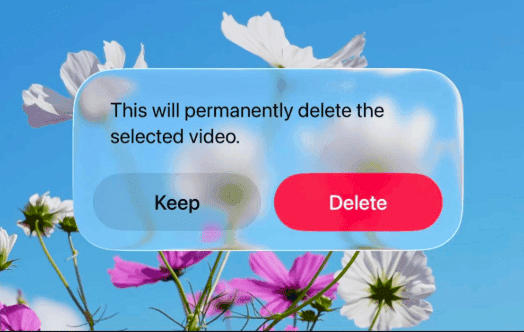
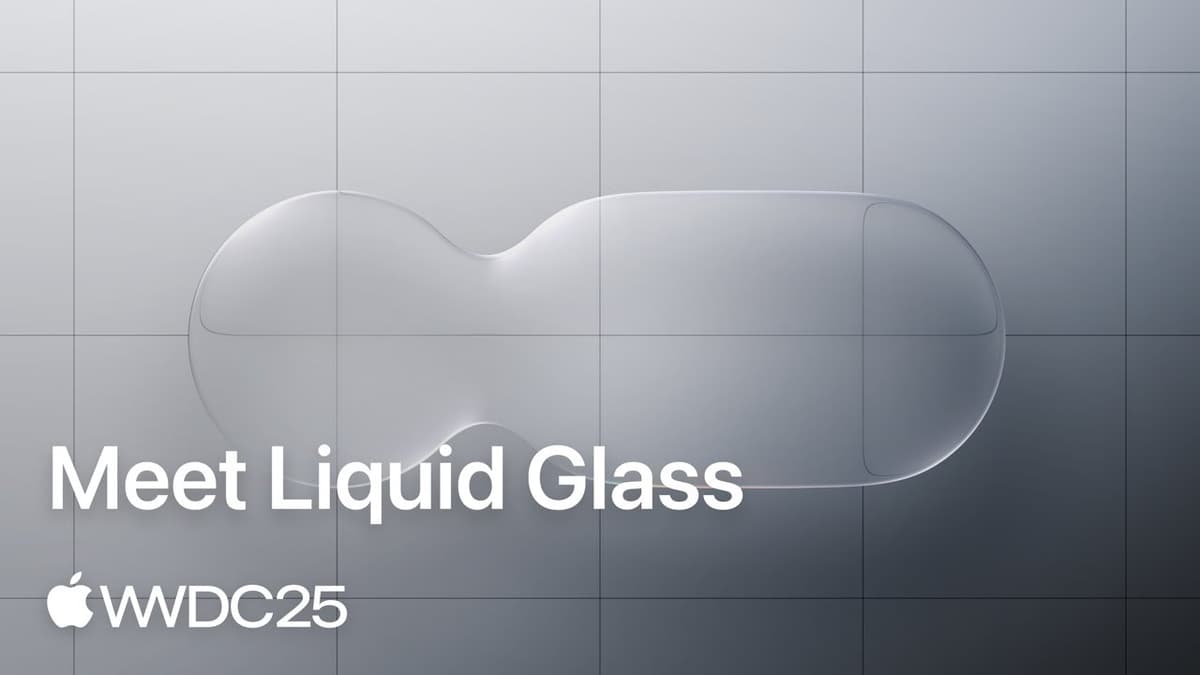
Electrium Mobility wanted to focus on modern UI, and with the recent (at the time) introduction of Apple Liquid Glass, there was an interest in incorporating glassmorphism into the overall designs.
Additionally, for certain accents, Electriumap featured a green colour palette, which I also incorporated into the designs. However, it is important to note that on the desktop version, this colour palette was loosely used, thus for the mobile version, I also used this colour palette in a more loose way, to maintain the same style as the desktop version.
desktop version
All the desktop designs for Electriumap were completed before I joined the project.
The following desktop images are just for reference.
home/search
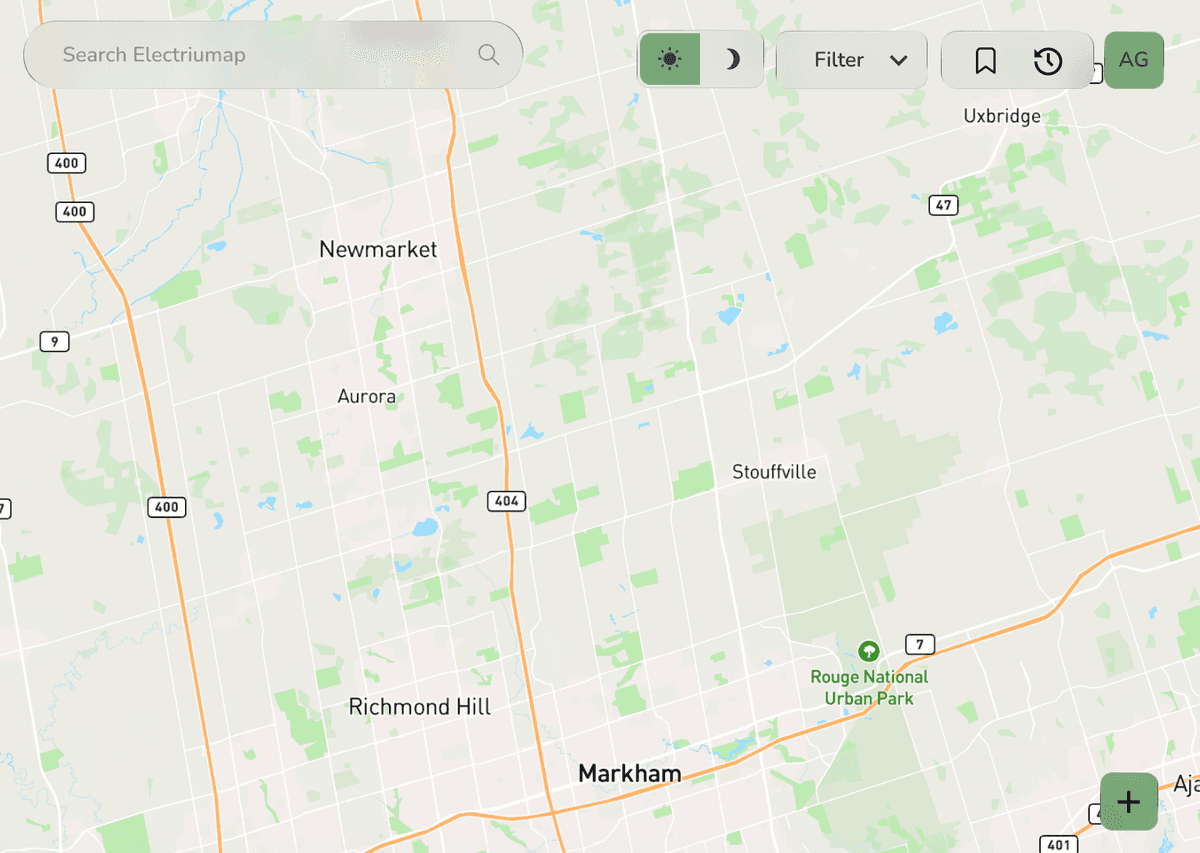
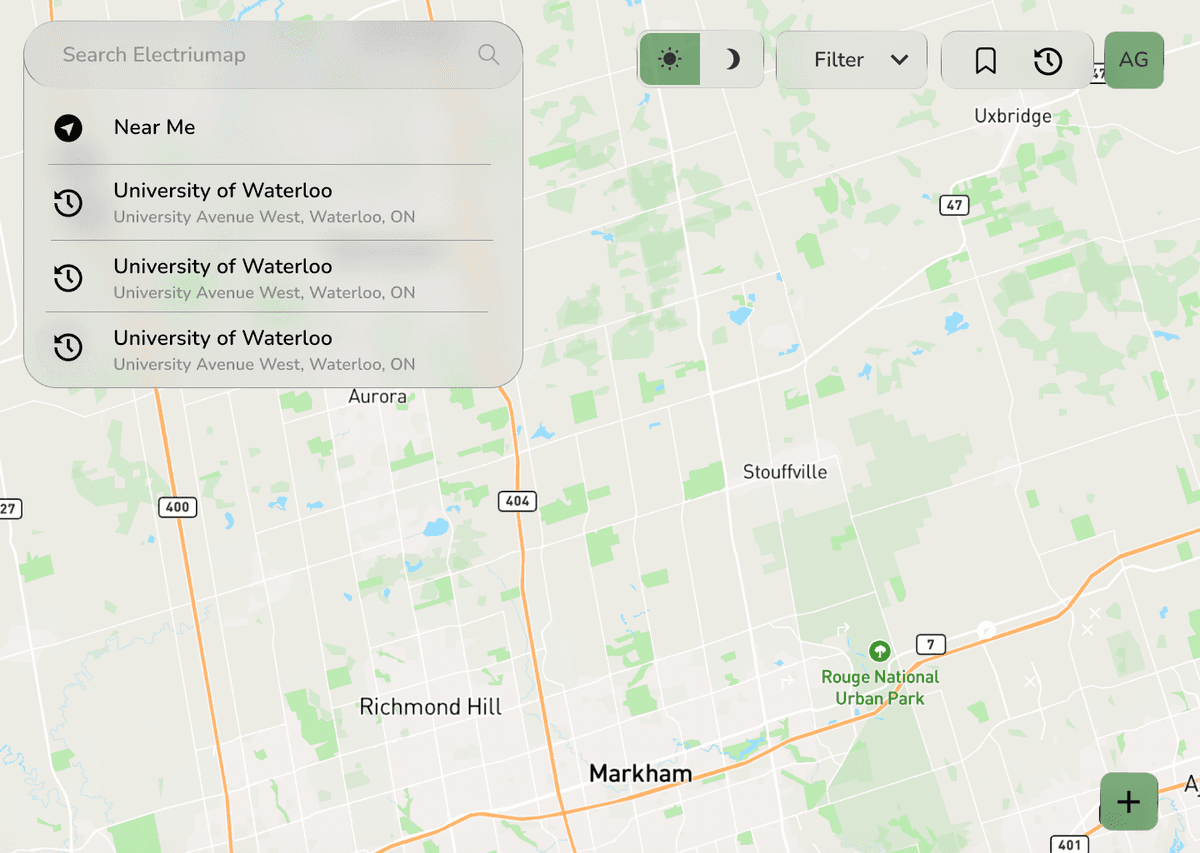
The images above showcase the desktop version of the home and search pages of Electriumap. As you can see, the design incorporates many glassmorphism elements as well as particular green accent colours.
view/save/add outlets
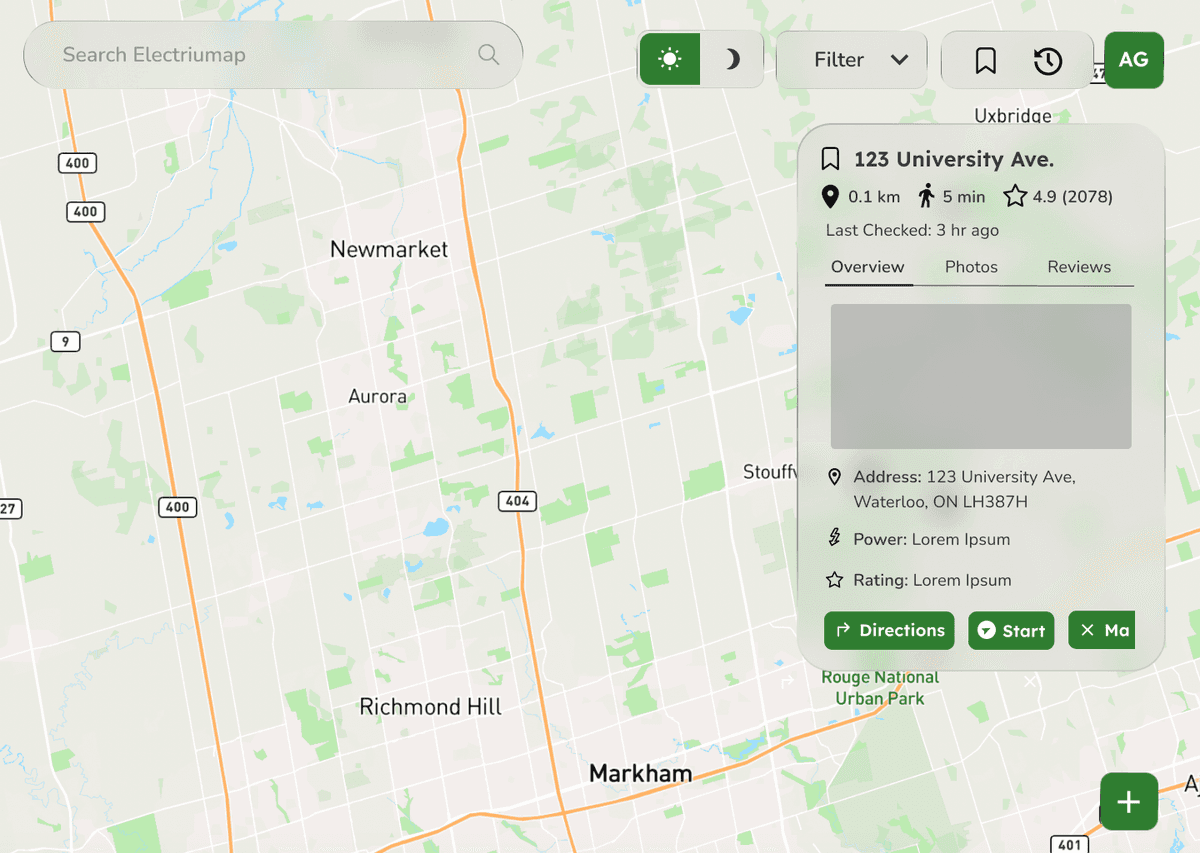
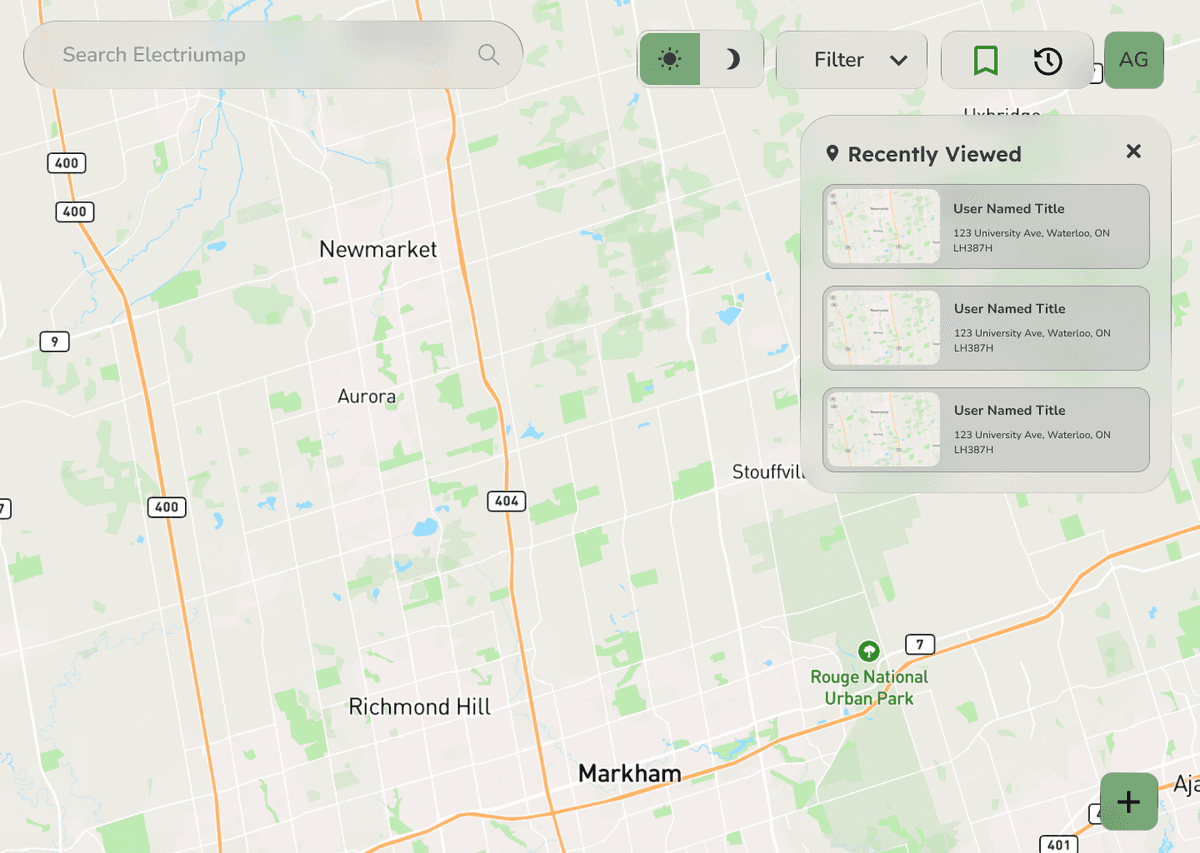
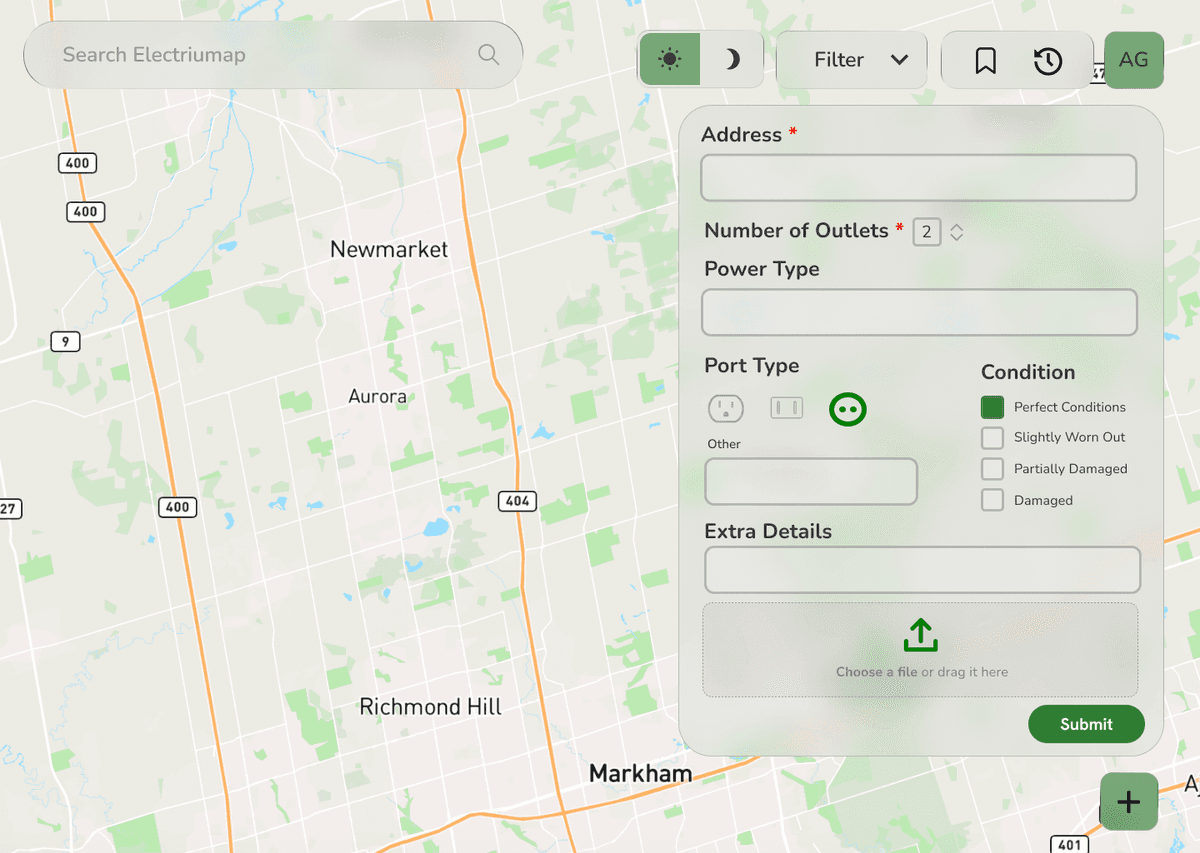
Moving on, the first image showcases the design mockups for viewing an outlet details, the second image showcases the design mockups for viewing a saved outlet, and the third image showcases the design mockups for adding an outlet.
profile
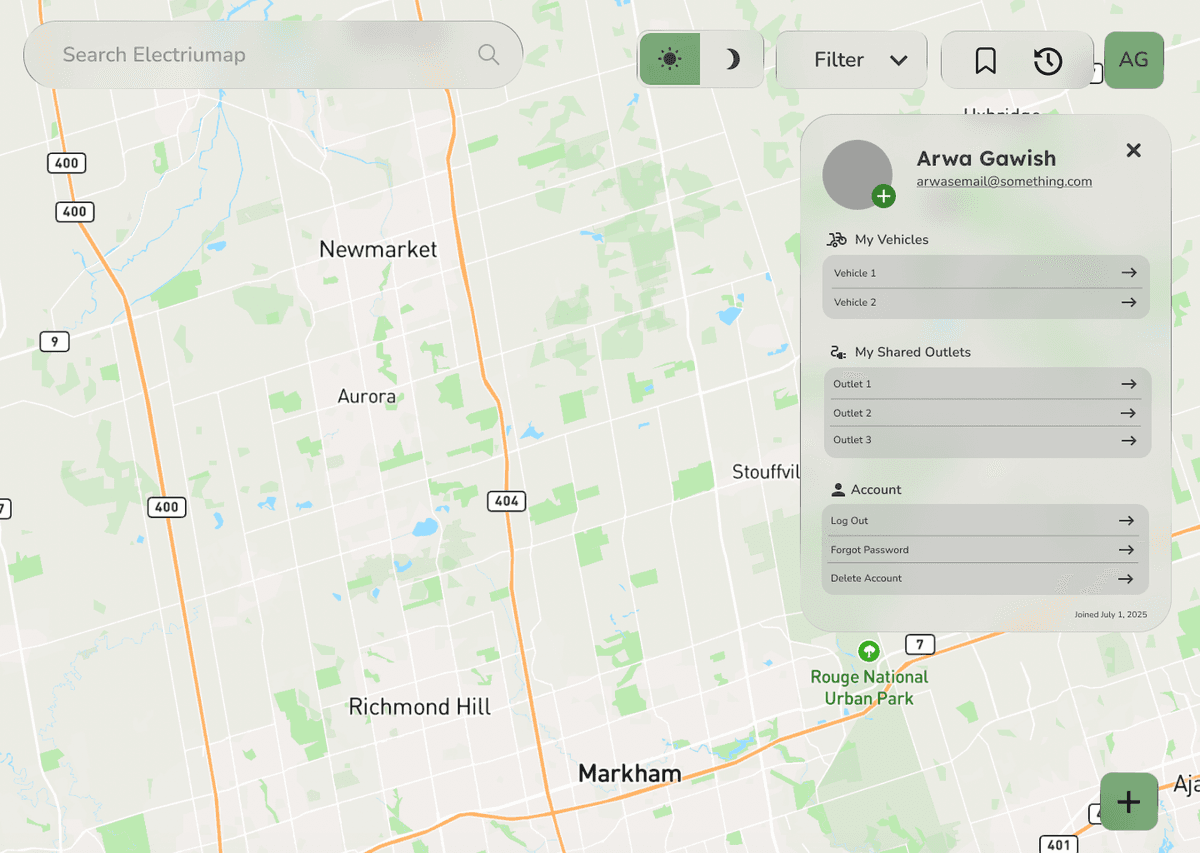
Finally, the image above showcases the design mockups for the profile page, which is where users can edit their profile, view their vehicles and view their shared outlets.
mobile designs
The following images showcase my work in translating the desktop designs to mobile.
home/search
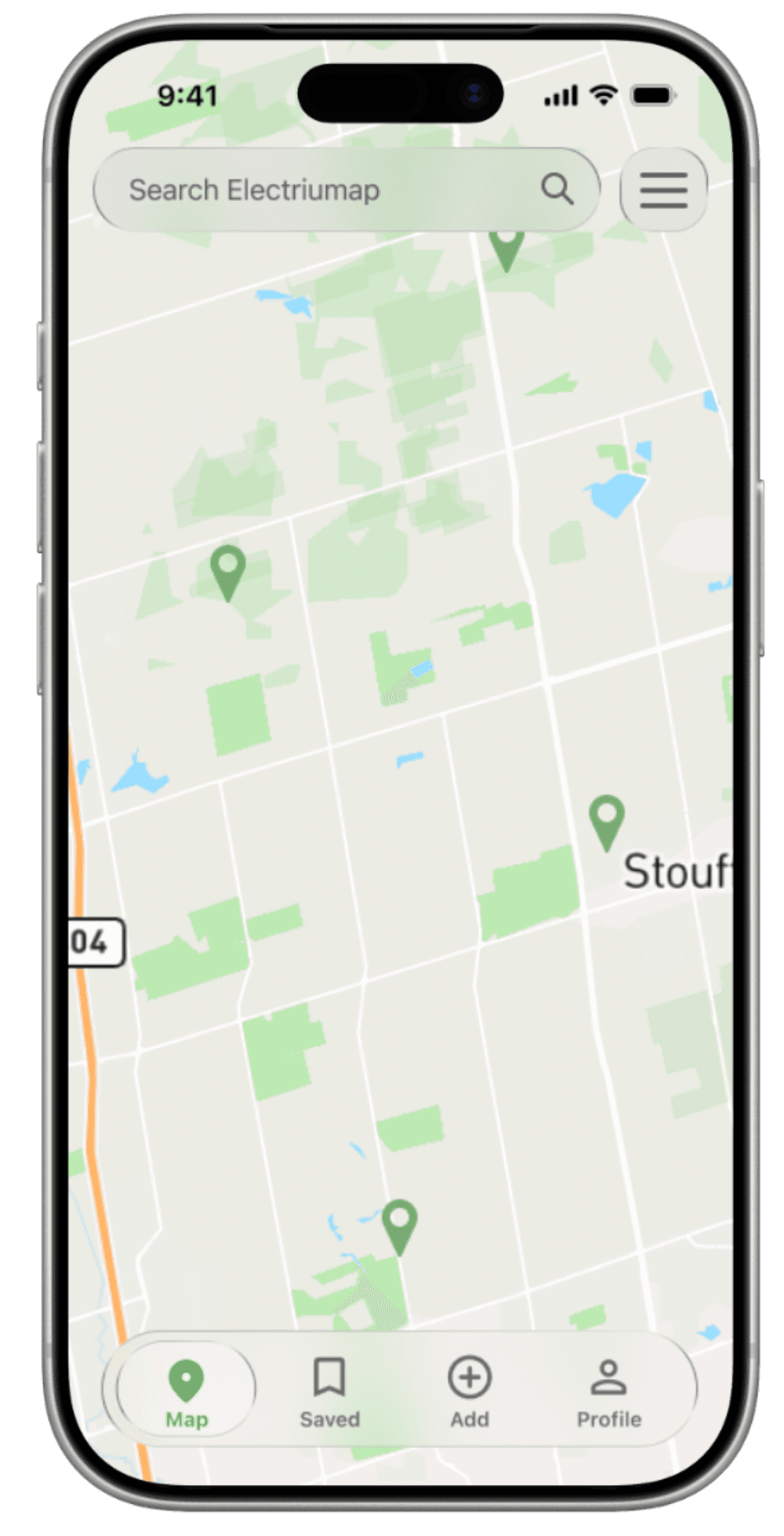
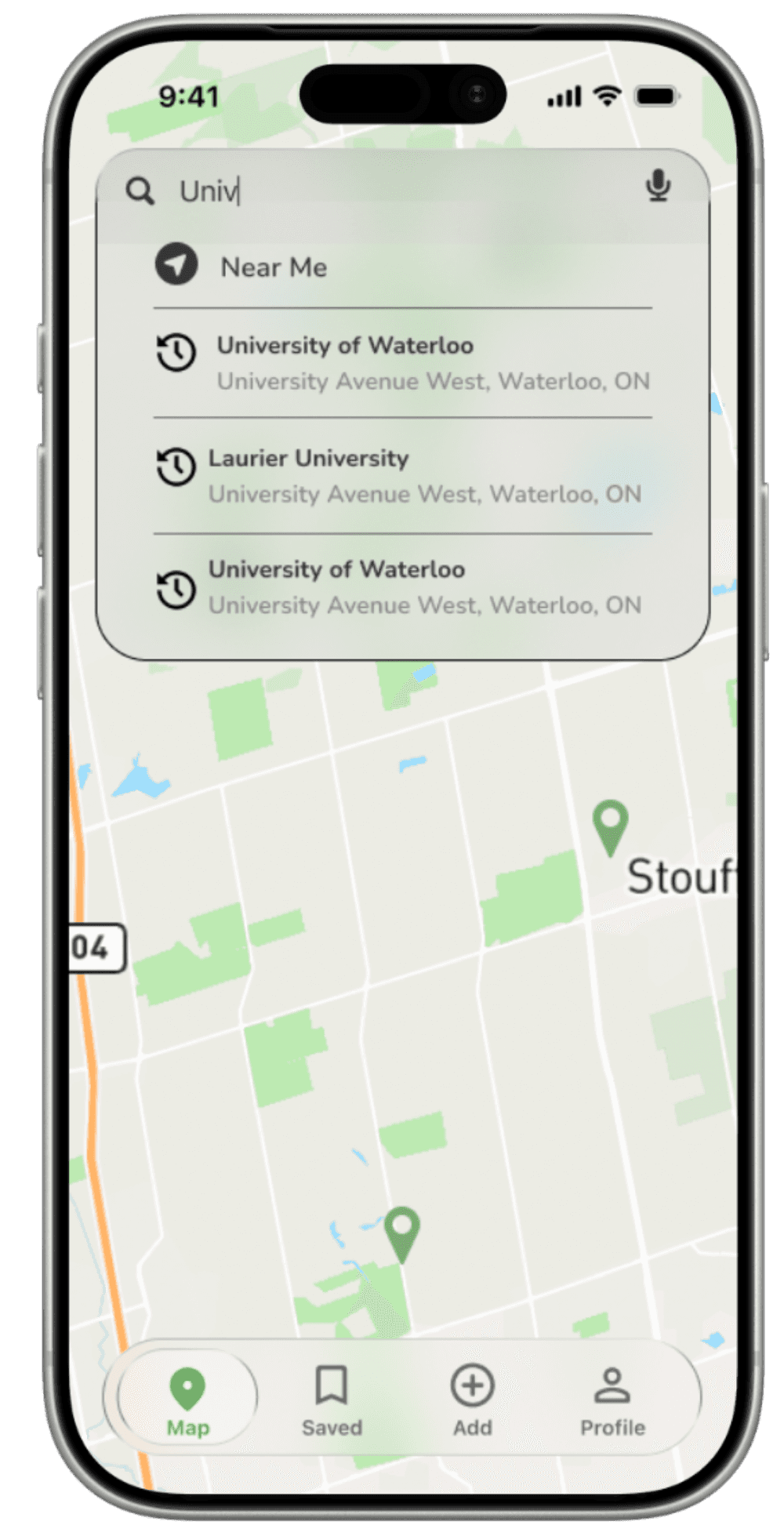
These images showcase the mobile designs for the home and search pages.
As you can see, the top elements have been compressed into a search bar and a hamburger menu, to save and conserve space. When clicked, the hamburger menu will reveal the different ports that a user can filter the map by. The buttons that were removed (light/dark mode toggle, save button, history button) were all moved to different areas of the app. For example, the light/dark mode toggle on mobile is now within the profile section.
view/save outlets
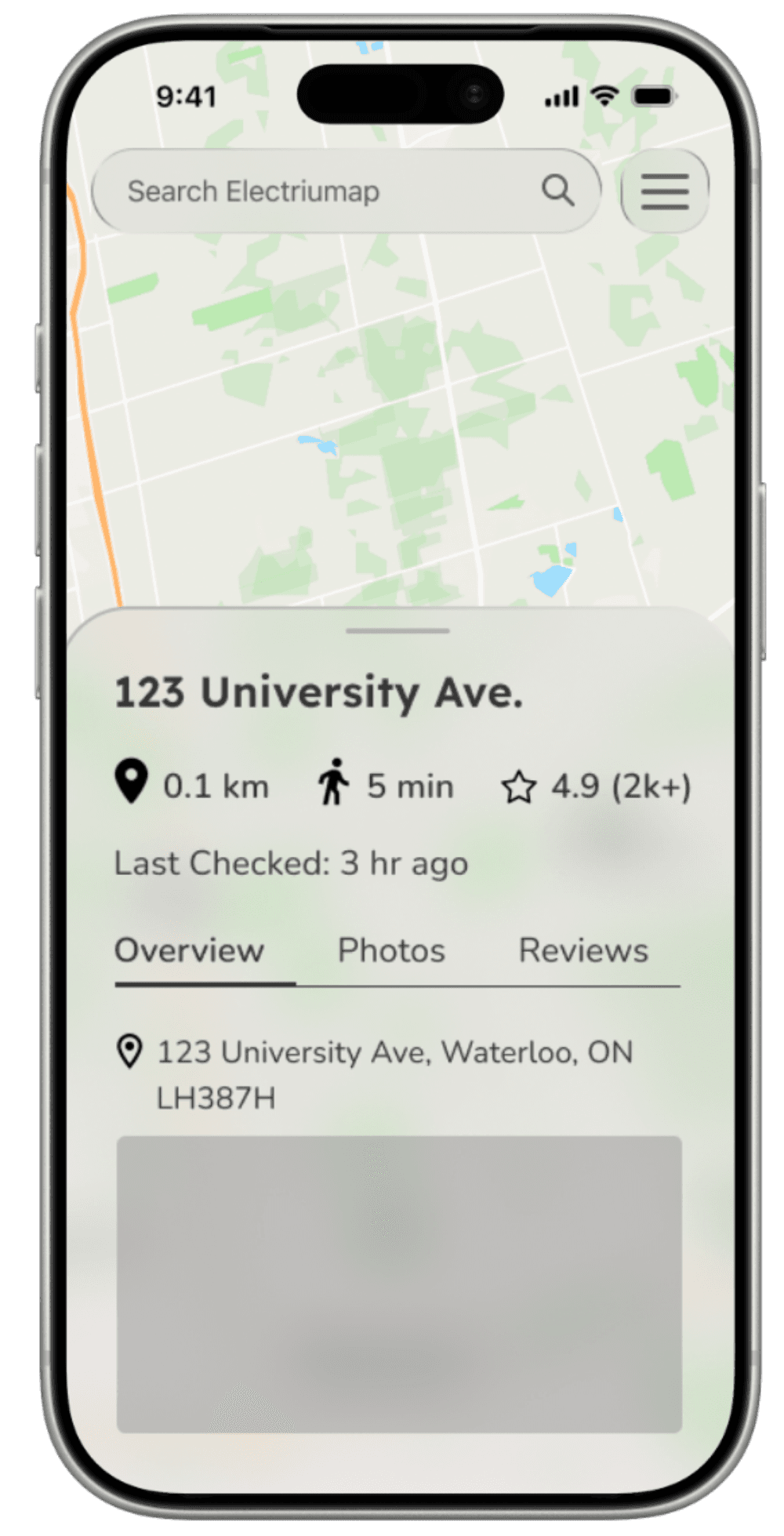
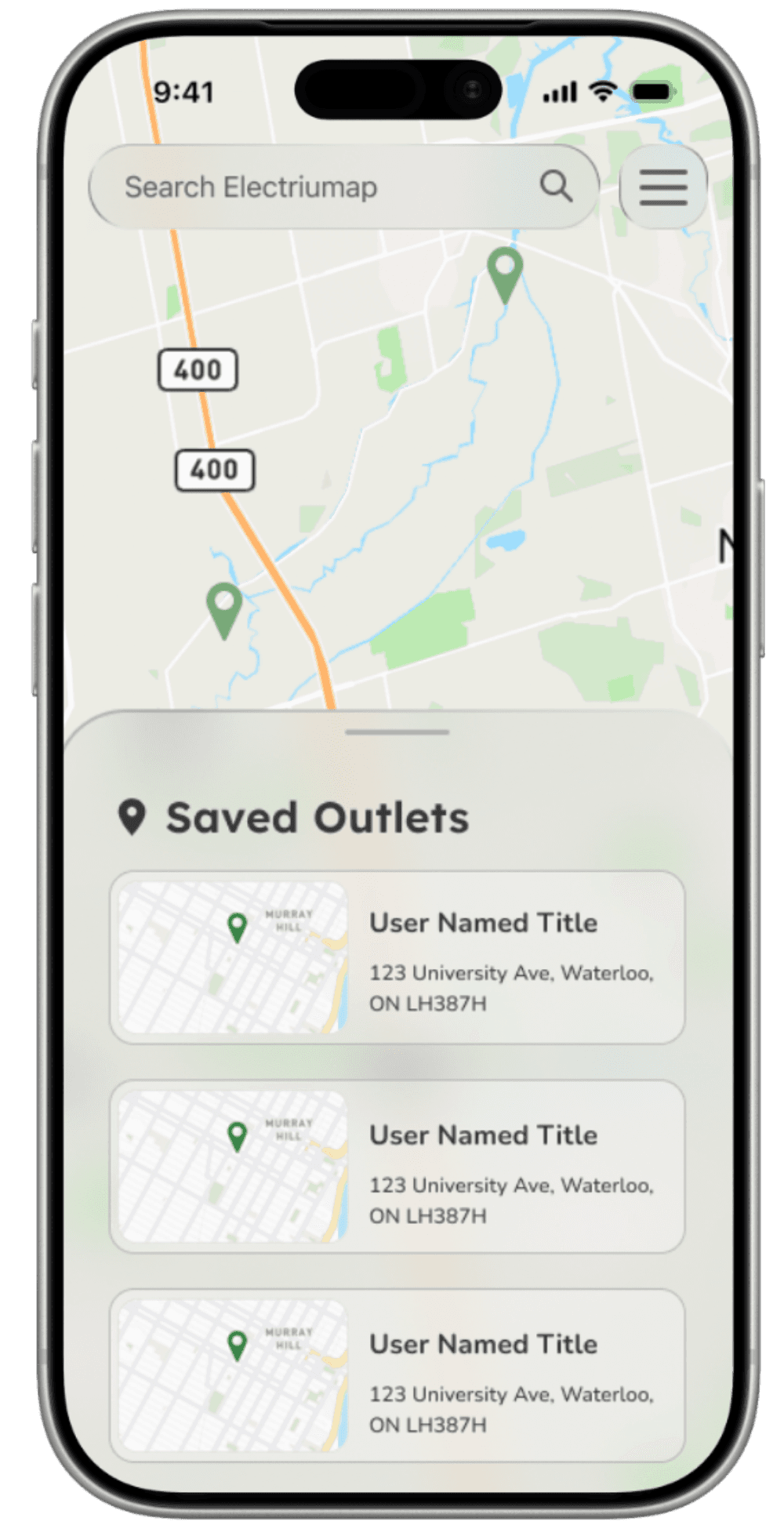
These images showcase the mobile designs for viewing an outlet details and viewing a saved outlet.
A modal sheet popup is used to showcase the details of the outlet, keeping the users within the frame of the map while they are able to view additional information. It's important to note that the viewing a saved outlet design could be made into it's own page, especially since accessing the popup is done from the navbar.
add outlets
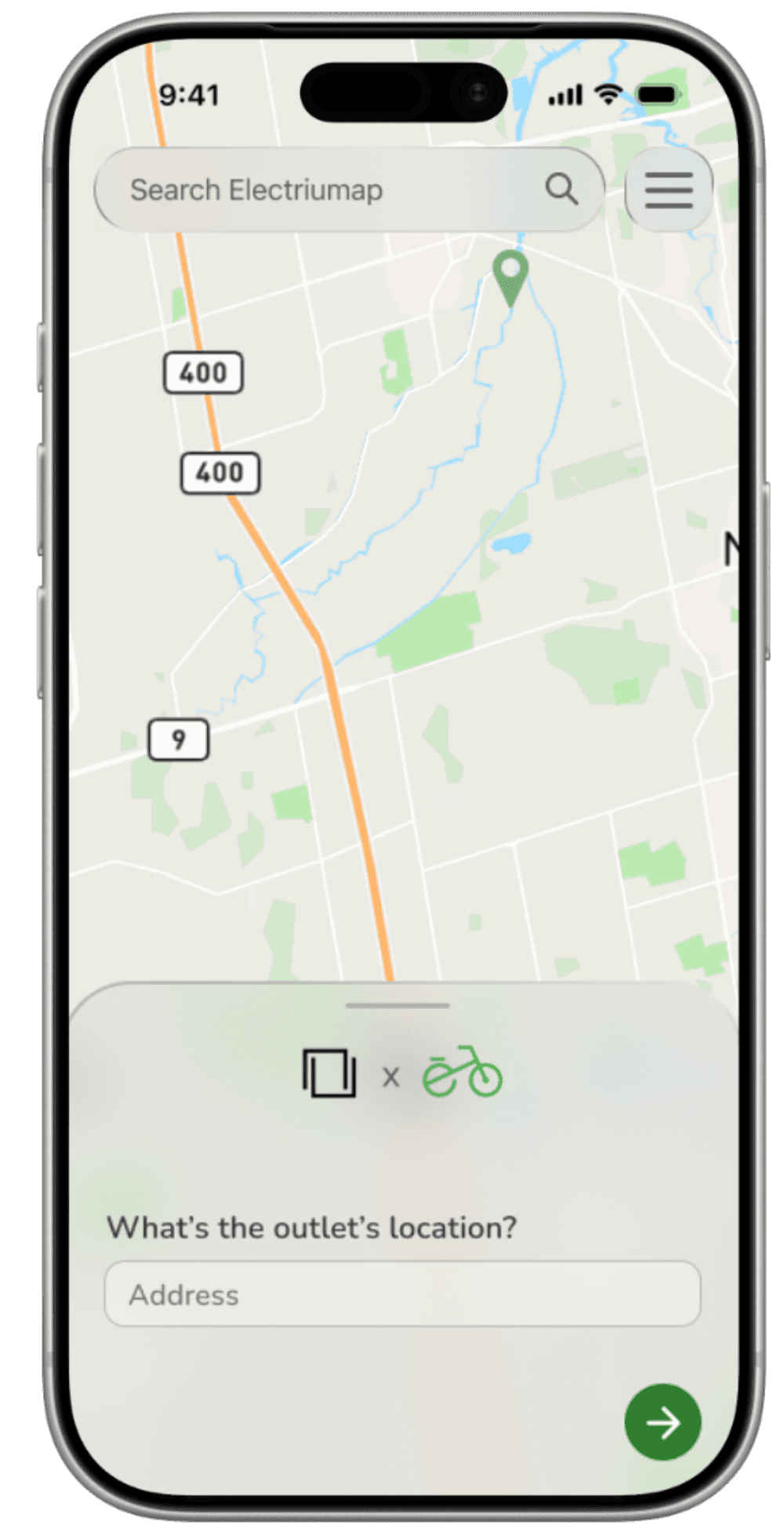
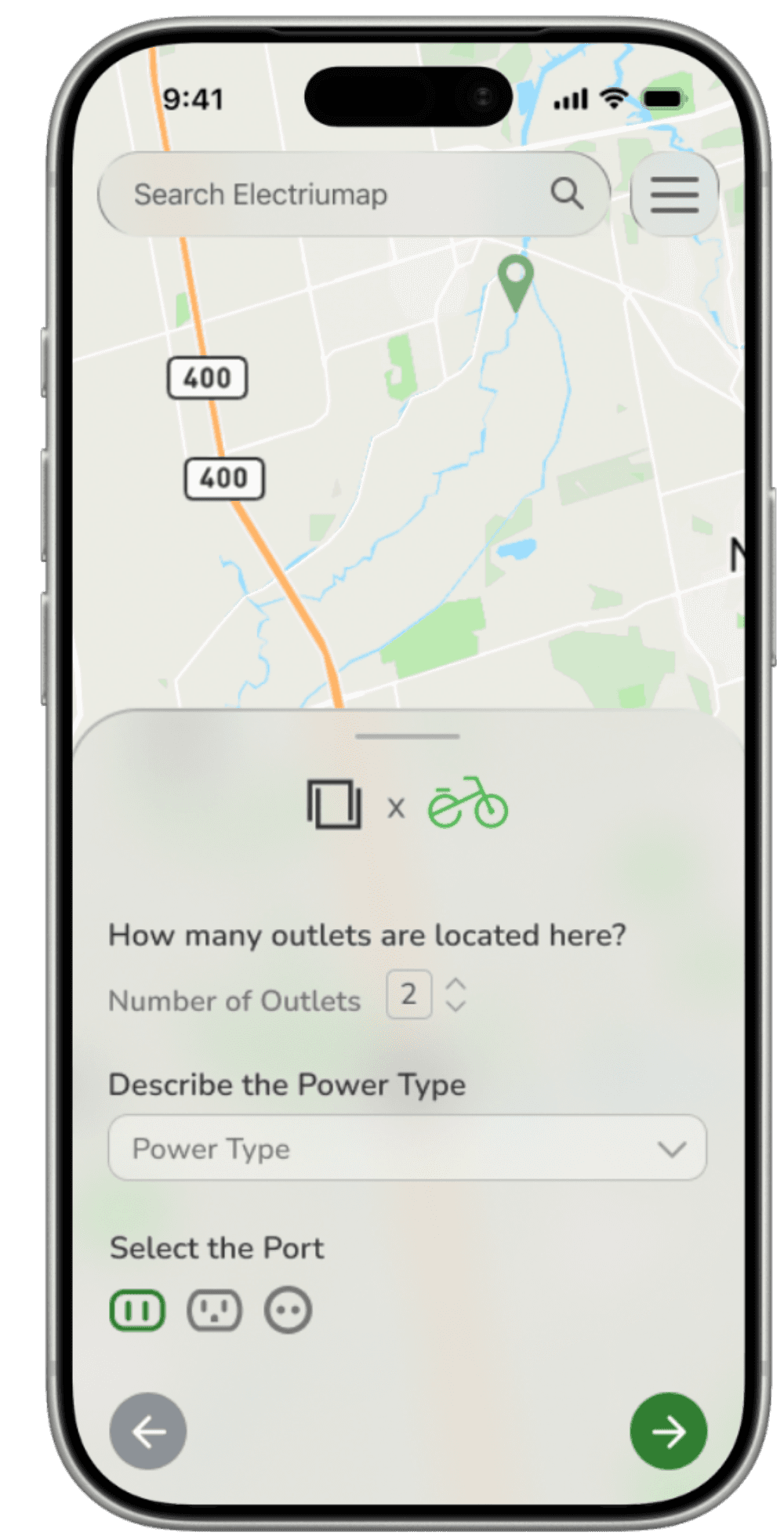
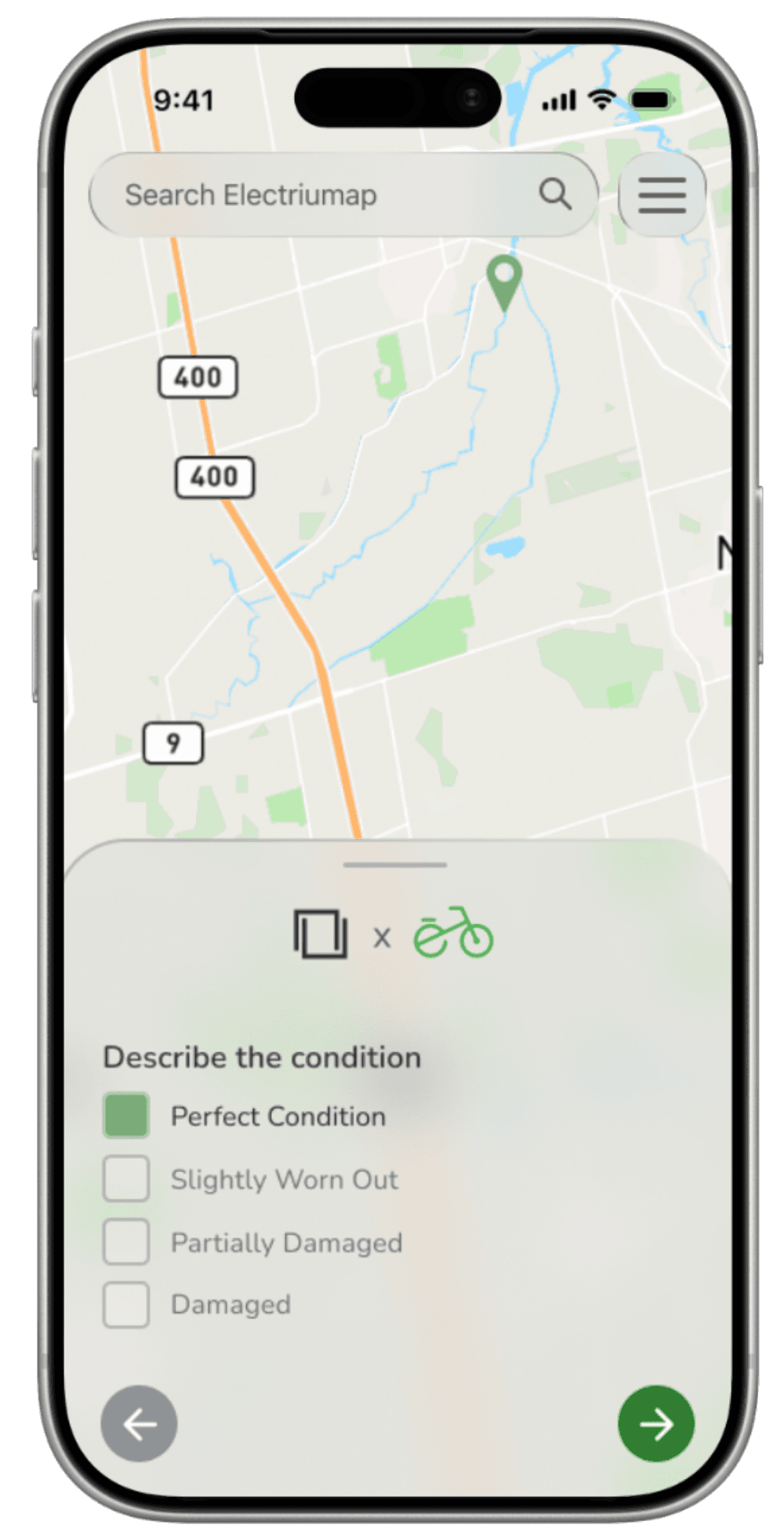
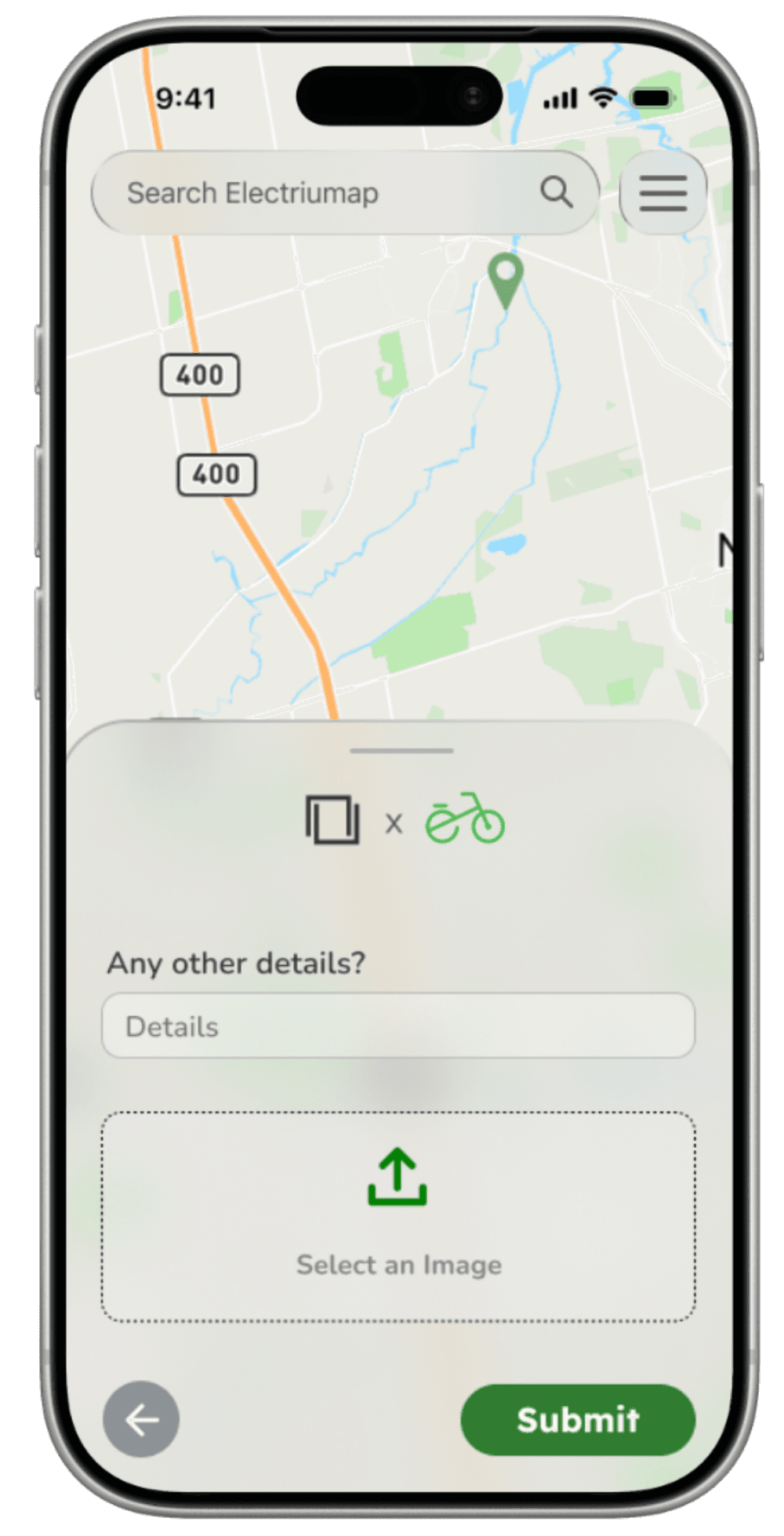
These images depict the steps needed to add an outlet.
The redesign of the add outlet flow was the most significant out of all the flows, since the desktop version had a lot of elements that would not fit on mobile. Thus, a multi-step form was used to break down the process of adding an outlet, making it easier for users to navigate through the process on mobile.
I also took some creative liberties with the text input fields. On the desktop version, the text input fields are big with a thick gray stroke. However, this didn't seem to align with the other boxes that were present within the app. To maintain a consisten design style, I decided to reduce the thickness of the stroke and make the text input fields smaller.
profile
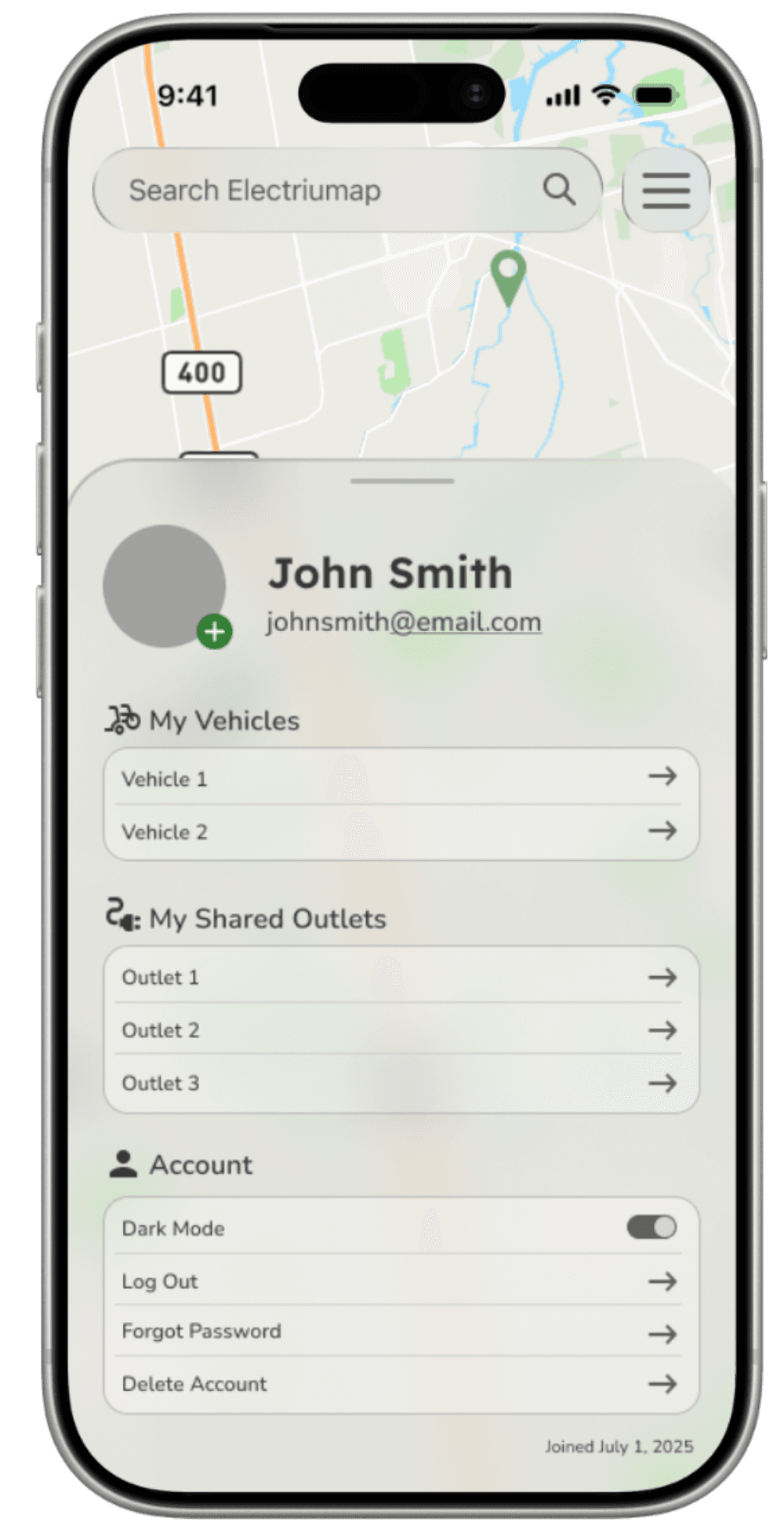
These images showcase the mobile designs for viewing the user profile
Similar to the reason for taking creative liberties for the add outlet flow, I also took creative liberties with the profile page.
The desktop version featured gray boxes that were opposite to the rest of the design. For the mobile version, I decided to play around with the colours and chose a more appropriate colour scheme that aligned with the rest of the app.
reflection
Electriumap was a great experience for me to learn how to translate desktop designs to mobile designs.
Here's a few notes on what I learned:
1. It's important to consider the mobile design when designing for desktop to avoid having to make significant changes for the design (mobile first design!).
2. Consider the user experience when designing for mobile. It's not just about trying to make the design fit on a smaller screen, but also making sure that the design is easy to navigate.